Make It Your Own
DOB Energy allows you to customize both your on-site experience and the notifications you receive. Follow topics and companies to keep informed about the news and insights that matter to you. Do this to get the most out of your DOB Energy subscription.
On-Site Experience
- The My Stories carousel on the News homepage will provide easy access to the most recent stories on the topics you follow.
- You can explore more of these stories in the My Content area of the site. Here, you can see a feed of stories matching your topics of interest, and explore further stories from each of those topics.
Newsletters/Alerts
- DOB Energy offers a combination of both curated content from the Editors, and personalized newsletters and alerts.
- You can choose what you want to be informed about, and how you want to be contacted. Opt for emails, or use push notifications to be alerted directly on your device.
- The availability of both real-time alerts and summary digests newsletters lets you receive information at the right time for you. If you're closely watching the activity of a particular company, real-time alerts allow you to hear about news right away, while the digest newsletter lets you start off your week with a summary reminding you what happened the week before.
Follow Topics
Selecting topics to follow is key to personalization of your DOB Energy experience. Your selection will feed the My Stories section on the homepage, as well as the My Content area of the site. They will also be used to determine what we'll email, or alert you about.
There are many ways to manage your topics. You can do it as you read articles, or you can go in and use the full customization options to get everything set up the way you want it. It's up to you.
Topic is the catch-all description for the different kind of tags that can be applied to articles on DOB Energy. The types of topics you can follow include:
- Sections: Major subject areas and some of our most popular content, aligning with the primary menu items in News.
- Categories: Narrower, more specific subject areas.
- Companies: News and insights specific to a company.
- Plays: News and insights specific to a play accross the WCSB and U.S.
In An Article
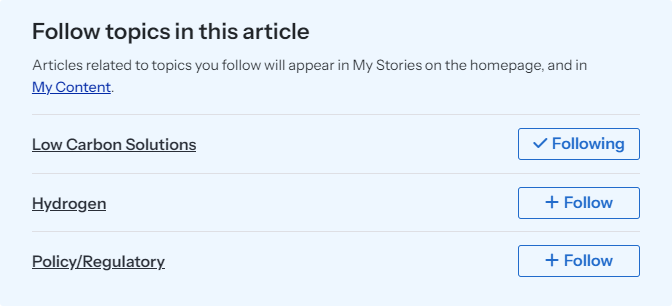
At the end of each article on DOB Energy, you will find a list of the topics covered by the article. The list will tell you which of these topics you are already following, and which topics you are yet to follow. Just a simple click will get you set up.
On The My Content Homepage
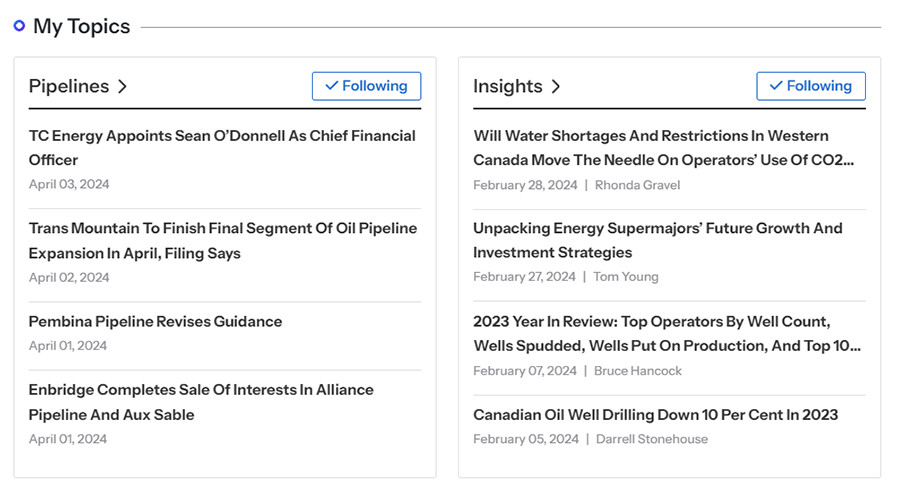
This page is primarily used to display content of interest to you; however, it also allows you to make some adjustments to your followed topics. You can easily unfollow a topic under My Topics…
…and you can make use of the Discover More Topics suggestions to add new topics to your preferences.
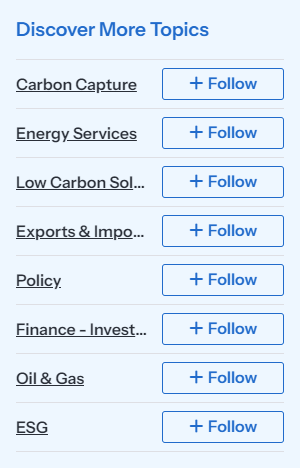
In both cases, it's just a single click to make the change, and your My Content page will refresh immediately.
On The Followed Topics Page
This is where you can fully manage your topics of interest. Each type of topic has its own list of followed, and followable topics. If you understand how to adjust one type, you understand how to adjust them all. Let's consider Categories, since it's such a long list.
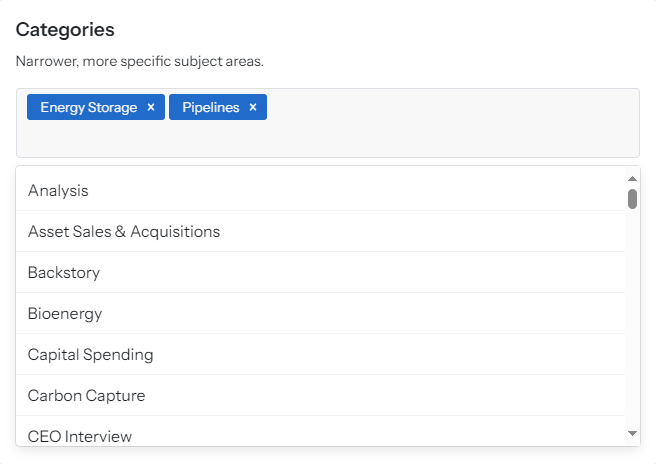
Categories already being followed are listed in blue. You can click the X if you want to unfollow that topic.
To follow one of the categories in the list below, just click on it. You can also filter the list by typing in the box beside your followed topics.
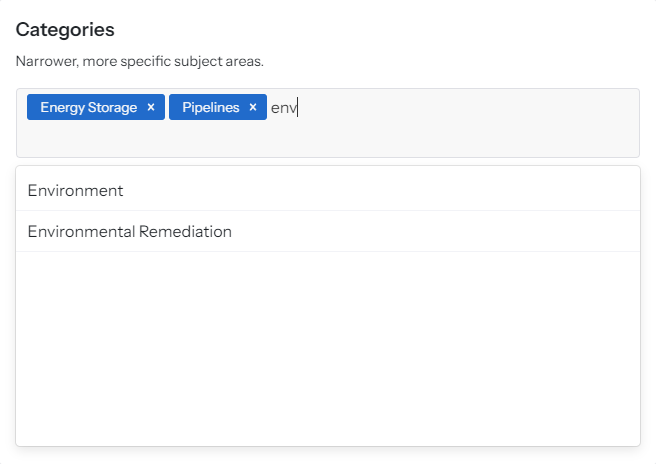
That's all there is to it.
Manage Newsletters And Alerts
Newsletters and alerts are a fundamental component of the DOB Energy experience. They help you stay connected with the industry, even when you don't have the time to visit the site, and they help bring important matters to your attention.
Get to this section by clicking My Content, then clicking Newsletters/Alerts on the main navigation bar. Navigate between settings for From The Editors and Personalized For Me content using the links below the main navigation bar.
DOB Energy offers a couple of different ways to be contacted – email and push notifications. It's up to you to decide which style works best for different pieces of information. The experience will be slightly different for each method, so let's explore these options to help you make your choices.
Emails
Delivered to your inbox, you will receive a nicely formatted communication, with text and images. Although it acts as a jumping-off point to the DOB Energy site, there is plenty of content included directly in the email.
Push Notifications
These are short messages that appear either as a pop-up ion your desktop browser, or within your mobile device's notification centre. They lead you to the DOB Energy site, where you can learn more.
Although you will often see push notifications for your emails as they arrive, they belong to your email application. They share that feed with emails you receive from other sources, and what you see in the notification is just a preview of the start of the email.
Direct DOB Energy push notifications offer a message tailored for the medium, and show up with the DOB Energy logo, so they're easy to spot.
If you choose to use push notifications, you will need to accept them independently on each device.
From The Editors
The DOB Energy editorial team creates many offerings to keep you in touch with what's happening. You can control your subscription to these newsletters and alerts through a simple series of switches.
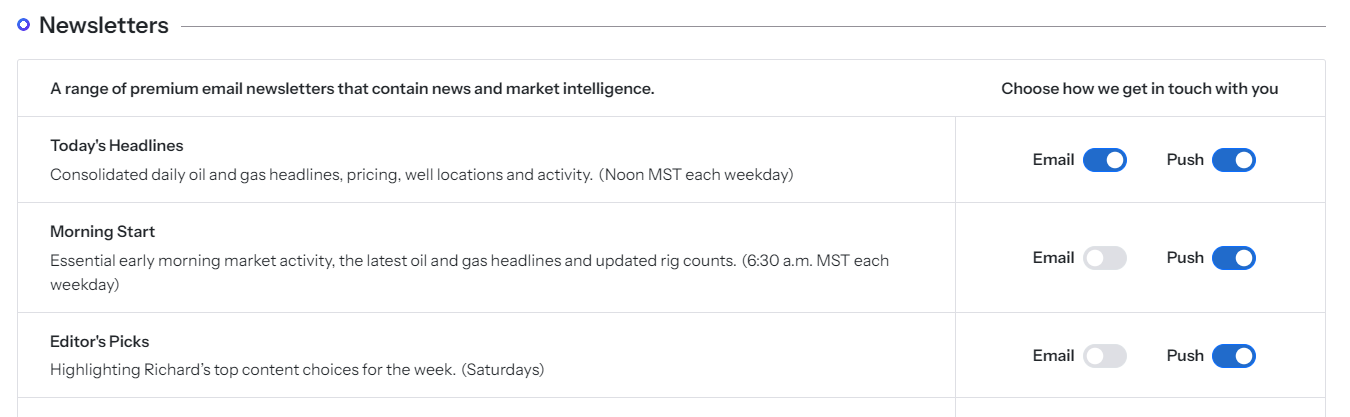
Choose between emails and push notifications as your delivery mechanism on a case-by-case basis. Push notifications will provide a brief note, and a link to the equivalent content on the DOB Energy site.
Personalized For Me
There are two different kinds of communications you can receive based on the topics you follow – a regular summary of new content (digest newsletter) or an immediate notification of an article being added (alert).
The content of the digest newsletter is determined by the topics you follow. You can choose how often, and when, you would like to receive the digest newsletter communication. You can also choose if you want to receive the digest newsletter as an email or a push notification.
If delivered as an email, the digest newsletter will contain a list of all articles posted to DOB Energy during the period it’s intended to cover – the past day, week, or month, depending on your cadence setting – that match your followed topics. If delivered as a push notification, the notification will say how many articles have been added that match your followed topics, and it will direct you to the My Content page on the site to view them.
Article alerts allow you to set up a personalized version of Breaking News. Select a subset of your followed topics for which you want to be notified as soon as a matching article is posted to DOB Energy. For instance, use this feature to receive being alert for news postings related to a particular company or play.
Manage Push Notification Devices
Turning on push notifications for newsletters or alerts within DOB Energy is the first step towards receiving them. Control over which sites and applications are allowed to deliver notifications to you must be handled on a per-device/-browser basis.
Once you have turned on push notifications for one or more communications, each new browser/device you use to visit DOB Energy should ask you whether you wish to receive notifications; however, your personal settings might mean notifications are blocked by default. If so, the following instructions should help you enable them.
Note that different desktop web browsers on the same machine are considered different devices, as they each use their own notification technology. If your current browser settings allow it, DOB Energy will prompt you to allow notifications.
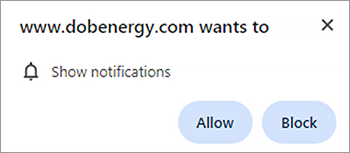
If not, you can manually enable them.
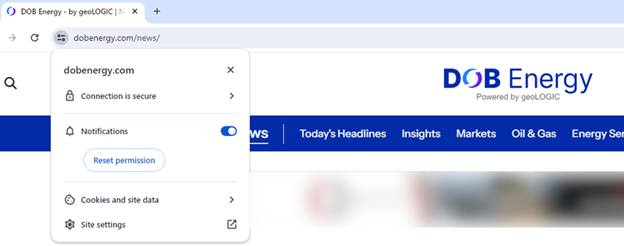
Chrome
You can adjust your notification settings by clicking the settings icon beside the URL.
Edge
You can adjust your notification settings by clicking the security icon beside the URL.
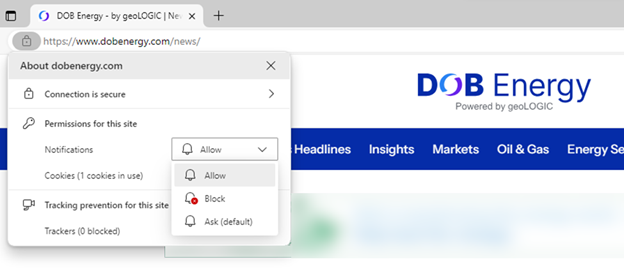
For other desktop browsers, please check their documentation on whether they support notifications, and how to control them.
To receive notifications on an iOS device, you must first save the DOB Energy site to your home screen. Note that this feature is only supported on iOS 16.4 and later.
Save To Home Screen
Using your browser of choice, visit the DOB Energy page that you want to use as the default page when launching the DOB Energy web app. Tap the share icon in your browser, choose Add to Home Screen, and follow the instructions from there.
You can now use this home screen icon to open DOB Energy as an independent web app, capable of receiving notifications.
Enable Notifications
Open DOB Energy from your home screen. You should receive a message from the operating system asking if you would like to allow push notifications. Tap Allow.
Subsequent changes and refinements can be made in the Notifications section within the iOS Settings app.
Note that, regardless of which browser you use to add DOB Energy to your home screen, it this will show up as “Safari – iOS” in your DOB Energy push device list.
To receive notifications on an Android device, you must first save the DOB Energy site to your home screen.
Note that this workflow may vary somewhat depending on your browser or device. If this option does not seem to be available, please check the browser documentation to learn whether they support notifications, and how to control them.
Save To Home Screen
Using your browser of choice, visit the DOB Energy page that you want to use as the default page when launching the DOB Energy web app. Tap the additional options section in the browser (in Chrome, this is represented by three dots), then tap Add to Home Screen and follow the instructions from there.
You can now use this home screen icon to open DOB Energy as an independent web app, capable of receiving notifications.
Enable Notifications
Open DOB Energy from your home screen. You may receive a message asking if you would like to allow the app to send notifications. Tap Allow. Alternatively, in your Android notification settings find DOB Energy and allow notifications.
Adjust The Devices Receiving Notifications
In the My Content section of the DOB Energy site, under Newsletters/Alerts, open the Push Devices page from the link below the main navigation bar. Here, you have the option to turn on and off DOB Energy push notifications for devices already registered with the site. You can also remove old devices from the list after you have retired them.